For Members & Subs
Keep your calendar current once. Your leader handles the rest.
Your Role
As a band member, your only ongoing responsibility is keeping your unavailability calendar up to date. That means marking the dates you cannot play — vacations, family events, other gigs — and extending your coverage date so your leader knows the data is current. When a booking opportunity comes in, the leader gets an answer without ever having to ask you.
Members and subs do not book gigs or manage venue/event records for bands they did not create. Your job is to keep availability current, review event details, and respond quickly when a leader sends a confirmation request.
Getting Started
Responding to Your Invitation
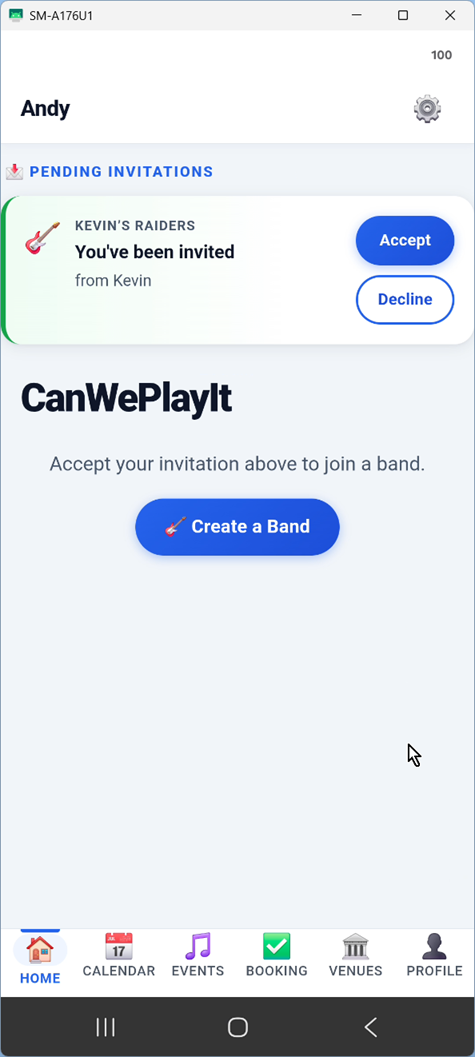
Your band leader invites you by email or SMS. You'll receive a message with a link to download the app and join the band. Once you've created your account, the pending invitation appears on your home screen.
If you're already signed in, invitations can appear in the app immediately and also arrive as a phone notification when the app isn't open.
Tap Accept to join, or tap Decline if the invitation isn't a fit.
If you receive invitations from multiple bands, each shows up separately so you can manage them independently.
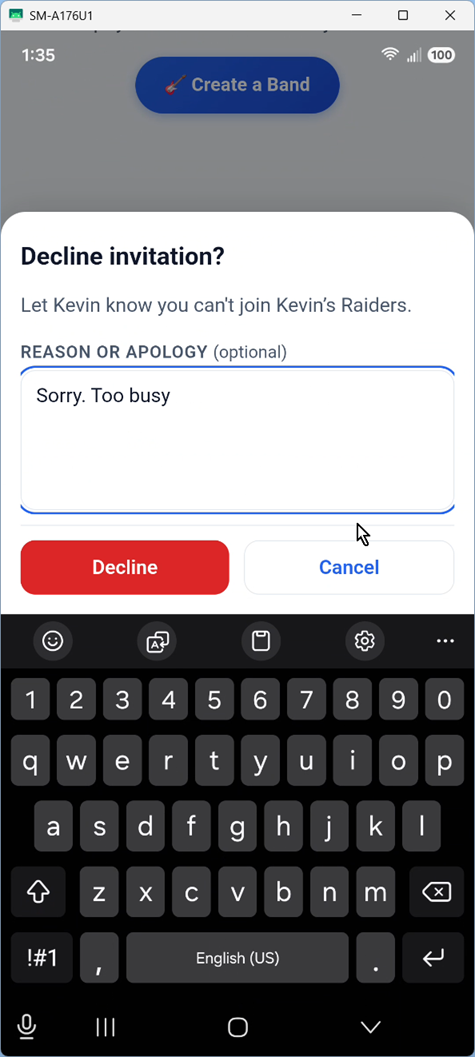
When you decline, you can include an optional reason or apology so your leader knows what happened. Declining removes the invitation from your home screen and lets the leader see your response.
Keeping Your Calendar Current
The first time you sign in, CanWePlayIt reminds you to create or join a band so you can set up your calendar coverage. After you're in a band, the Calendar tab keeps prompting you until your coverage is set.
Marking Unavailable Dates
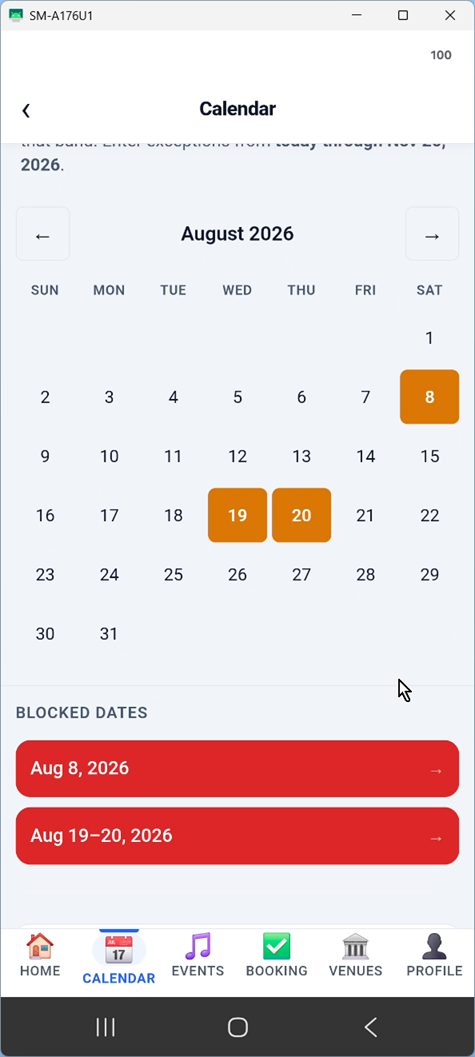
Tap the Calendar tab to open your calendar. Tap any date to mark it unavailable, or tap and drag across a range to block out multiple days at once.
You only need to mark dates you cannot play. Everything else is automatically assumed available — no need to check in daily or confirm your availability for individual dates.
Each band you belong to has its own availability calendar. Marking a date for one band doesn't affect your other bands.
Your Coverage Date
Along with marking specific unavailable dates, you maintain a covered through date. This tells your leader: "I've kept my unavailability current through this date — anything up to here is accurate."
Your leader won't get a green booking result for a date beyond your coverage date, because the app has no way to know whether that date is accurate or just hasn't been checked yet.
As a good habit, keep your coverage date at least two to three months out and bump it forward every month or so. It only takes a moment.
The Coverage Warning
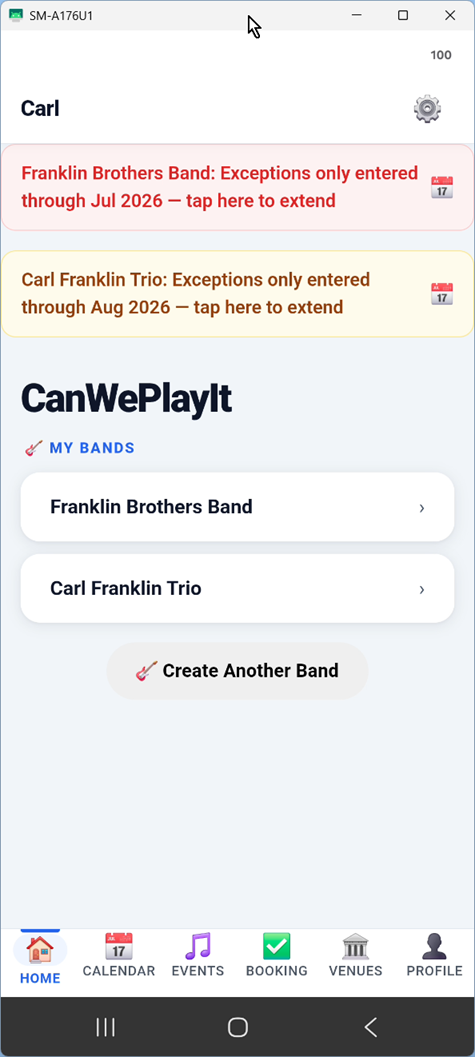
If your coverage date has expired or hasn't been set, you'll see a warning banner on your home screen. This is both a reminder for you and a signal to your leader that your calendar data may be stale.
Tap the banner (or open the Calendar tab directly) to extend your coverage date. Once you've set it, the warning clears.
Keeping this warning clear is the most important thing you can do as a member. It's what makes the booking check reliable.
When a Gig Is Booked
Confirming or Declining Events
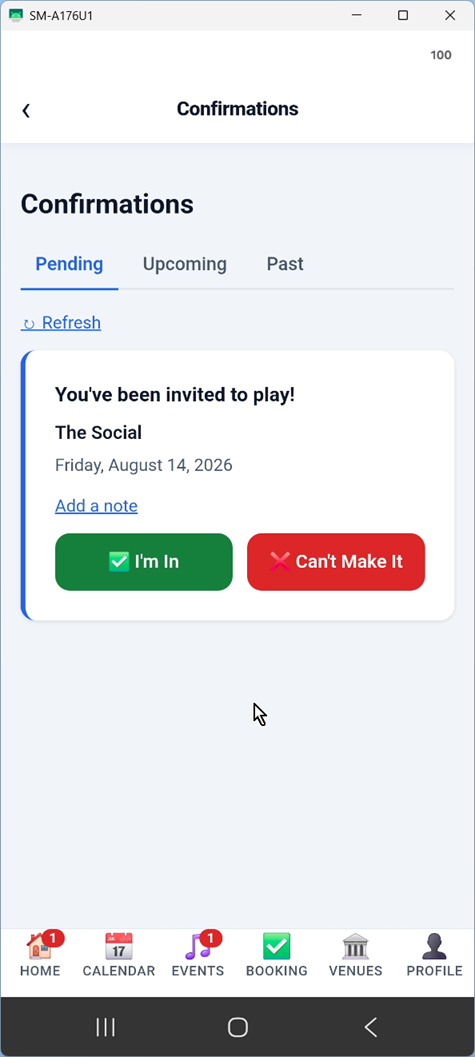
When your leader confirms a booking, you'll get a notification in the app with the date, venue, and any notes they've added. If the leader has stored the venue's address, phone, and website, those details appear directly on the event so you don't have to look them up.
Tap Confirm or Decline directly on the event card. Your leader can see everyone's responses at a glance from their Events screen.
If you confirm and later realize you cannot make that gig, open the event and tap Find a sub. Pick an available sub and send the request. Your leader will see that you are asking that person to cover until the sub accepts.
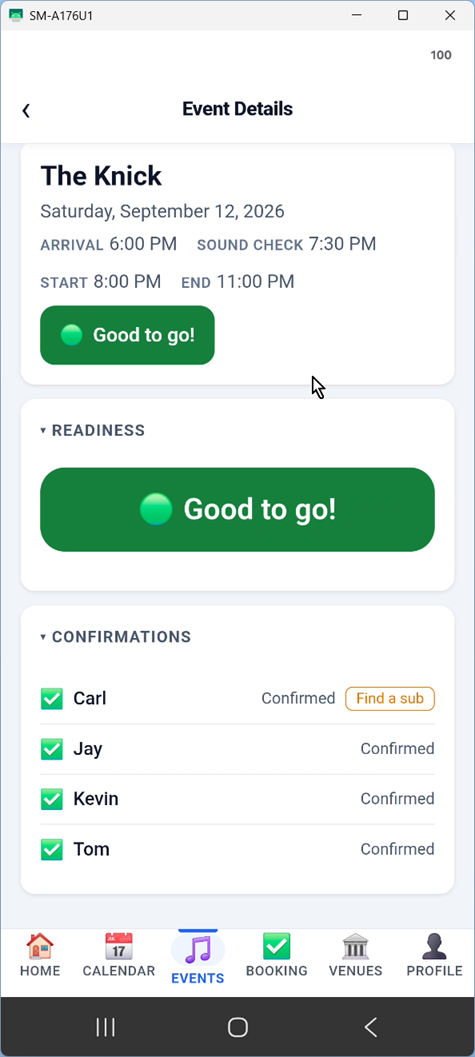
Tap any event to see the full detail view: venue, date, arrival time, sound check time, start time, and end time. The Readiness section shows the current booking status, and the Confirmations list shows every member's response at a glance.
Playing in Multiple Bands
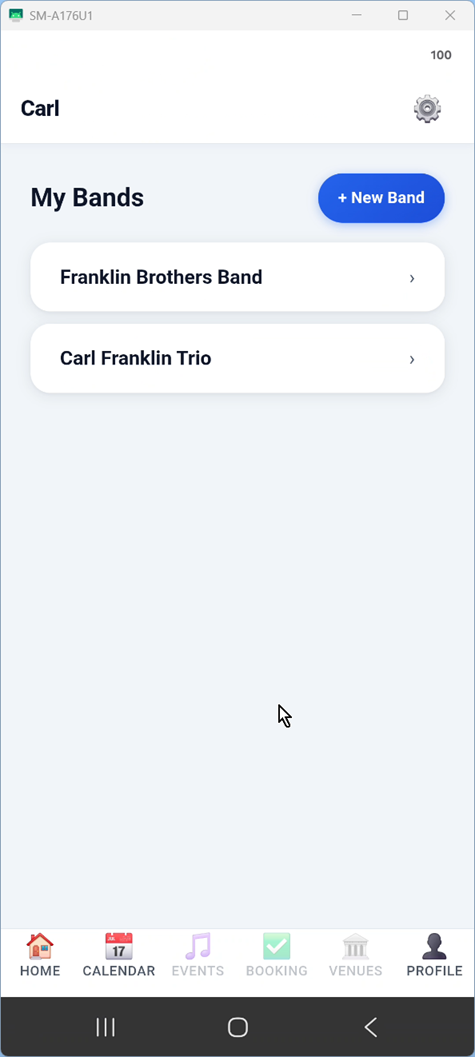
If you belong to more than one band, each appears as a separate card on your home screen. Switch between them easily, and manage availability, coverage dates, and events independently per band.
A conflict you mark for one band doesn't carry over to another. Each leader sees only the data relevant to their group.
About Substitutes
Your band leader may have designated a substitute for you — a backup player who steps in when you can't make a gig. Standing subs are linked to the member they cover, so everyone can tell who is covering whom.
Substitutes maintain their own unavailability calendar and respond to event invitations. One-gig sub requests show the venue and date so the sub knows exactly what they are being asked to cover.
Account Security
Account creation, password reset, and email address changes all use short 6-digit email codes. When you change your email address, CanWePlayIt asks for your current password before sending the code to the new address.
If you are removed from a band, the app updates your band list and sends a notification so you know you no longer have access to that band's schedule.